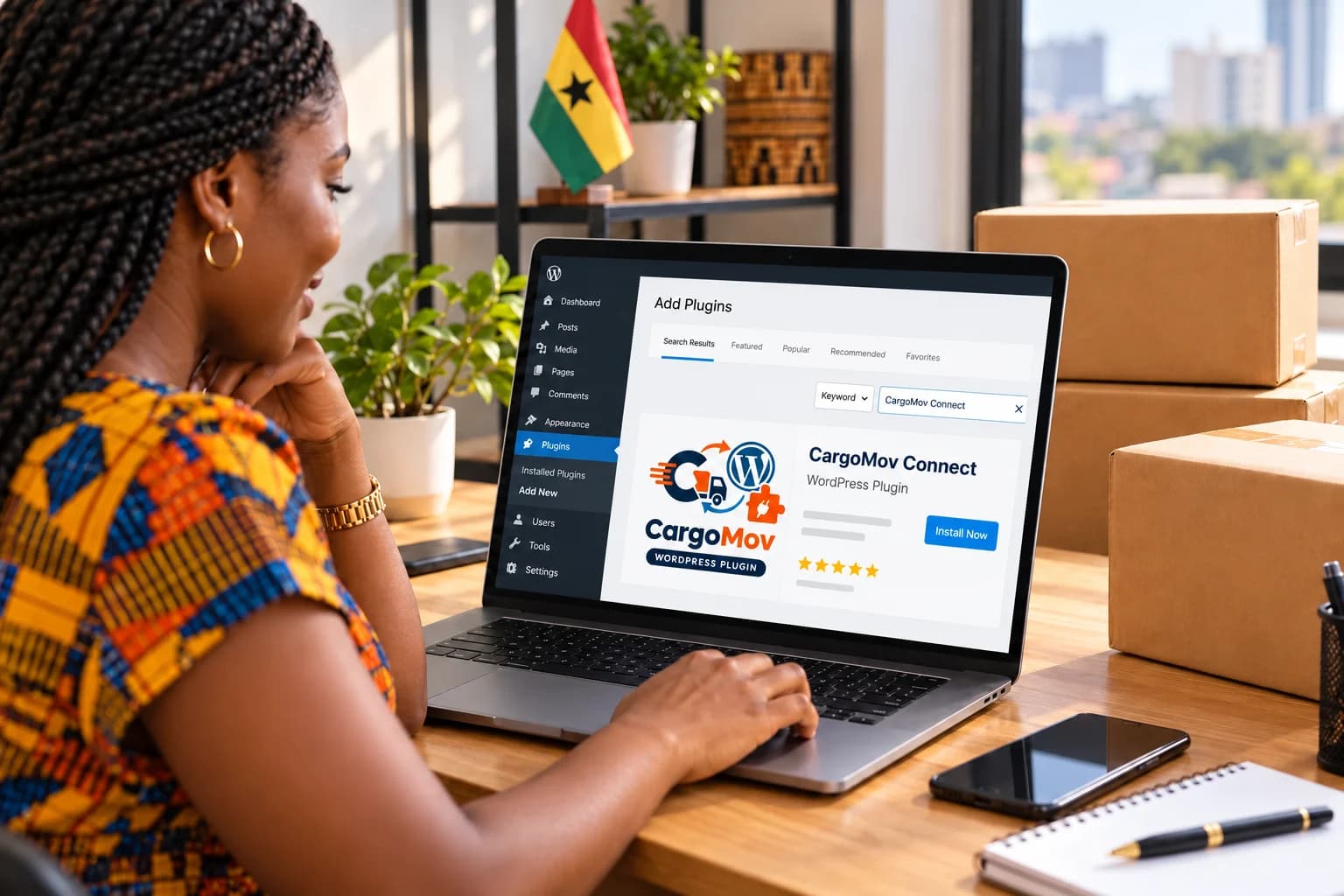
CargoMov Connect provides approved Merchant stores with a managed WordPress delivery-integration workflow.
CargoMov Connect gives approved Merchant account holders a managed way to add CargoMov delivery to a WordPress website. This guide explains the setup, Sandbox test, security requirements and update process.
What CargoMov Connect does
CargoMov Connect links a WordPress website to the CargoMov Merchant delivery workflow. Depending on the approved plugin release and store configuration, it can request authoritative delivery quotations, hand eligible orders to CargoMov and receive shipment status updates.
The plugin does not automatically approve a business or bypass CargoMov account controls. The website owner must create a Merchant account, add the website as a store and wait for CargoMov Admin to activate the account before using Live mode.
What you need before installation
Prepare an HTTPS-enabled WordPress website, administrator access, a supported WordPress and PHP environment, and an approved CargoMov Merchant store. Generate the required store credential inside the Merchant dashboard only after the account is active.
Treat the CargoMov credential like a password. Enter it only in the protected WordPress administration area. Never place it in a public page, theme file, browser script, screenshot or support message.
How to install CargoMov Connect
Open the CargoMov Connect page and select Download latest plugin. In WordPress, go to Plugins, choose Add New, select Upload Plugin, choose the downloaded ZIP and complete the installation. Activate the plugin only after WordPress confirms that the package installed successfully.
Open the CargoMov Connect settings, enter the Merchant store information requested by the plugin and start in Sandbox. Save the settings, request a test quotation and create a test order before enabling Live mode.
Test the complete delivery flow
A successful connection test is only the first check. Confirm that the store receives a CargoMov quotation, the amount and delivery details are displayed correctly, a test order creates only one shipment, and shipment status changes return to WordPress.
Keep Live mode disabled if quotation, order, tracking or webhook tests fail. Review the store ID, environment, website URL and credential, then use the Merchant dashboard request logs to find the exact failure.
Updates and the permanent download link
CargoMov Admin publishes approved plugin releases from the Merchant section of the Admin dashboard. The public download button uses one permanent address, so it serves the newest active ZIP without website owners needing a different link for every release.
Before updating a production website, back up WordPress, read the release notes and test the new version in a staging or Sandbox environment. Do not delete working credentials during a routine plugin update unless CargoMov specifically requires credential rotation.
Security and troubleshooting
Use HTTPS, limit WordPress administrator access, keep WordPress and its dependencies supported, and rotate a CargoMov key immediately if it may have been exposed. Webhook signatures must be verified before a status event changes an order.
If a download is unavailable, CargoMov Admin has not yet published an active package or the release is temporarily unavailable. If WordPress rejects the ZIP, do not rename or unpack it; download the current package again and contact CargoMov support with the displayed error.
Topics covered
Frequently asked questions
Can anyone use CargoMov Connect?
A website owner can download the plugin, but Live CargoMov delivery access requires an approved CargoMov Merchant account, an active store and a valid credential.
Where should the CargoMov key be stored?
Store it only in the protected CargoMov Connect settings inside WordPress. It must not appear in public HTML, browser JavaScript or a public repository.
Should I test before going live?
Yes. Complete quotation, order creation, duplicate prevention, tracking and webhook tests in Sandbox before enabling Live mode.
How do I get plugin updates?
Use the Download latest plugin button on the CargoMov Connect page. CargoMov Admin publishes approved updates to that permanent download endpoint.
Ready to connect your WordPress store?
Open the CargoMov Connect page to download the latest Admin-approved plugin package and review the installation steps.